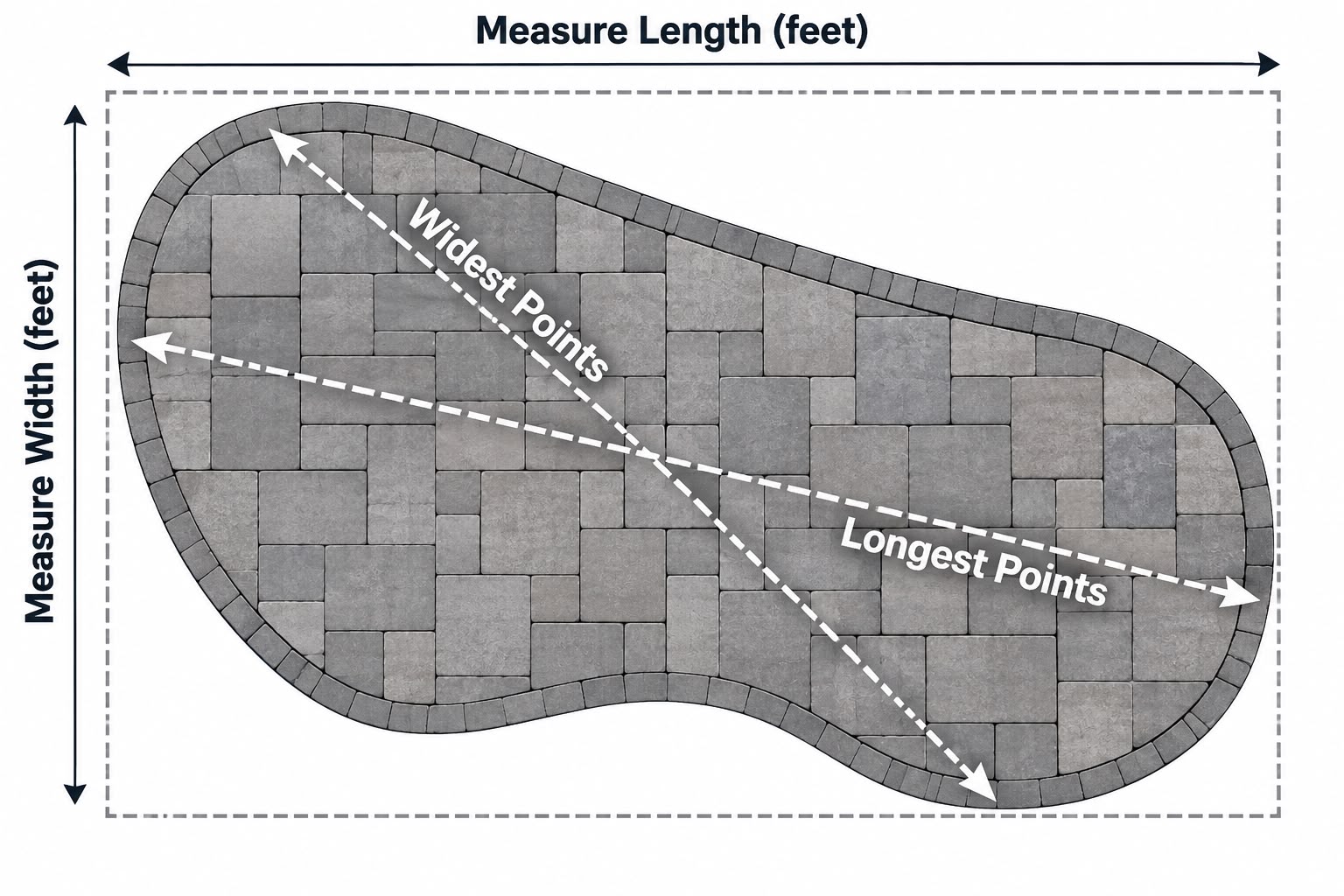




Artificial Turf CAD Blocks and Design Files: A Practical Guide
A turf file can look realistic and still make a plan less useful if it obscures the layout or suggests details that haven’t been established. A simple CAD block, a 3D model, and an image texture each serve a different purpose. Choosing artificial turf CAD blocks and design files means matching the asset’s geometry, scale, and level of detail to the decisions your plan needs to support.
A polished visual doesn’t automatically communicate a buildable design. A rendering may show the surface without showing the installation layers or project assumptions behind it. Software compatibility matters, too: a file that doesn’t work with your design tools can slow revisions rather than clarify the plan.
This guide explains how to distinguish CAD blocks, 3D models, and image textures, and how to check scale, detail, and compatibility before using them. You’ll learn how to represent turf clearly in plans and presentations while connecting design choices to the project’s intended use, whether that’s a putting green, pet area, play space, roof or deck, or sports field. The goal is a plan that looks inviting and communicates the right information.
Key Takeaways
- Match each turf asset to its purpose: use symbols or hatch patterns for clear plans, textures for surface appearance, and 3D models for spatial views.
- Choose artificial turf CAD blocks and design files based on the project stage, drawing view, audience, and editing needs.
- Keep the site base, turf boundaries, hardscape, and annotations organized on separate layers to make plans easier to revise and review.
- Use a step-by-step workflow to prepare the base plan, add turf areas, check the drawing, and export a clear final version.
- Let the intended use guide product planning, from residential and pet areas to play spaces, roof and deck projects, putting greens, and sports applications.
What Artificial Turf CAD Blocks and Design Files Help You Plan
A turf CAD block is a reusable digital element in a design drawing. It can mark where artificial turf is planned and show how the area relates to the rest of the site. A CAD block communicates design geometry; a realistic surface rendering communicates appearance. These tools can work together, but they answer different questions: one clarifies the layout, while the other helps viewers picture the finished surface.
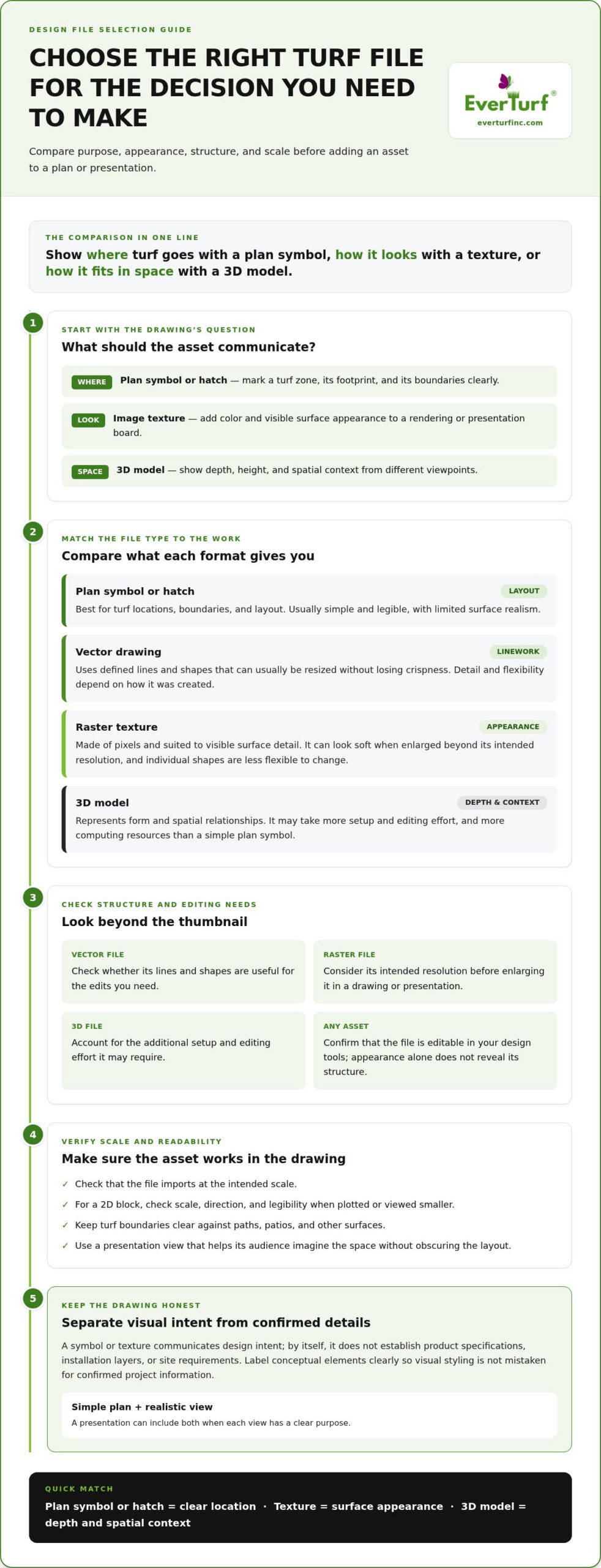
Choose a representation based on the drawing and its audience. A plan symbol or hatch pattern marks a turf zone cleanly. An image texture adds color and surface detail to a presentation, while a 3D model shows depth and context from different viewpoints. For background on the material itself, Artificial turf offers an overview of its history, components, and applications.
Clear boundaries make plans easier to read. They show the turf’s footprint, its relationship to paths or patios, and where one surface transitions to another. Pattern direction can also suggest visual flow. These cues communicate design intent, not construction details: a symbol or texture alone doesn’t establish product specifications, installation layers, or site requirements.
What information can a turf design asset communicate?
Use only as much detail as the next decision requires. During early planning, a simple symbol can show the size and shape of a proposed area without distracting from circulation or the overall landscape. In a client presentation, a texture or 3D view can make the contrast between turf, pavers, and planting easier to imagine. Label conceptual elements clearly so viewers don’t mistake visual styling for confirmed product or installation information.
A schematic symbol may work better than a photorealistic texture when the main question is where the turf begins and ends. Realistic imagery can draw attention away from boundaries or make a concept look more finalized than it is. Distinguish what the visual proposes from details that need to be established for the specific project.
Which projects benefit from turf files?
Different applications call for different layouts and views. A residential lawn plan may focus on open areas, edges, and transitions to a patio or garden. A pet area may need a clearly defined footprint and a visible connection to the rest of the yard. In both cases, legible boundaries help, while the intended use determines what else the drawing should emphasize.
A putting-green plan may call for a focused layout view, while a play-area plan should show how the turf zone fits into the broader outdoor space. Roof and deck plans benefit from a clear surface layout against the surrounding built area. Sports-field drawings may need to communicate larger boundaries and the turf’s relationship to adjacent zones. These are planning distinctions, not installation specifications. EverTurf’s product categories include residential, pet, play, putting-green, roof and deck, and sports applications. For a broader look at material choices and uses, explore the ultimate guide to artificial grass.
Used thoughtfully, artificial turf CAD blocks and design files make a proposed area easier to understand. They help turn an idea into a readable plan while keeping product and installation decisions grounded in the project itself.
How to Compare Turf CAD Blocks, Textures, and 3D Design Files
Start with the question the drawing needs to answer. Is it showing where turf will go, how the surface may look, or how the area fits into a three-dimensional space? The right asset depends on the task and must work with your design software. A thumbnail won’t tell you whether the file is editable or whether it will import at the intended scale.
Compare the file’s structure as well as its appearance. Vector drawings use defined lines and shapes that can usually be resized without losing crispness. Raster textures are made of pixels, so they can look soft when enlarged beyond their intended resolution. A 3D model represents form and spatial relationships, but may take more effort to edit and require more computing resources than a simple plan symbol.
Plan symbol or hatch: Best for marking turf locations, boundaries, and layout. Usually simple and legible, with limited surface realism.
Vector drawing: Useful for clean linework and editable shapes. Its detail and flexibility depend on how it was created.
Raster texture: Suited to renderings and presentation boards that need visible surface appearance. Individual shapes and details are less flexible to change.
3D model: Helpful when perspective, height, or spatial context matters. It offers depth but may require more setup and editing effort.
For plans, choose a clear 2D block; for renderings, use a surface texture; for client presentations, select the asset that best shows the space from the audience’s point of view. A presentation can include both a clean plan and a realistic view, as long as each has a clear purpose.
When is a 2D CAD block the right choice?
Choose a simple block for a top-down plan, area boundary, or layout discussion. Check that it is at the correct scale, faces the intended direction, and remains legible when plotted or viewed smaller. A decorative pattern can mark a turf zone, but it isn’t a technical guide to installation.
When do textures or 3D models add value?
Textures help viewers imagine the surface in a rendering or presentation board. Models are useful when perspective or the relationship between turf and nearby features affects the design. Both can create a more immersive view, but they may take longer to edit and increase file complexity. Keep the level of detail proportional to the decision at hand.
Before using an asset, identify its file format and confirm that your software can open and edit it as needed. Compatibility depends on both the format and the application, so test the file in the intended workflow rather than assuming it will transfer cleanly. For broader system-planning context, consult resources from the Synthetic Turf Council (STC). Once the design’s intended use is clear, you can explore turf options for your project.
Which Turf Design File Fits Your Project and Software?
Work backward from how the drawing will be used. A concept sketch needs speed and clarity; a client presentation needs a view that makes the proposed space easy to picture; construction documentation needs accurate, coordinated project information. Artificial turf CAD blocks and design files can support each stage, but a decorative asset isn’t a substitute for verified project details.
Use this checklist to narrow your choice:
- Project stage: Is this an early concept, a presentation, or documentation for a build?
- Drawing view: Does the audience need a top-down layout, a surface-focused rendering, or a perspective view?
- Audience: Is the drawing for your own planning, a homeowner, or the team coordinating the project?
- Editing needs: Will you adjust boundaries, colors, linework, or other elements?
- Software: Can your design application open the asset’s file type and preserve the information you need?
At the concept stage, a simple shape or symbol may be enough to compare layouts. For a client presentation, add visual detail only where it helps explain the intended experience. For construction documentation, prioritize clear, coordinated drawings and project-specific information. Don’t rely on a visual asset to define installation requirements.
Match the representation to the turf application
Let the intended use determine what the drawing needs to make clear. Pet and play layouts benefit from readable boundaries, usable area, and transitions to neighboring surfaces. A putting-green plan can show intended contours and functional zones without suggesting unverified dimensions or product specifications. For golf-focused planning, the EverTurf Putting Green guide offers related project context.
Roofs and decks have a built setting, so distinguish the proposed turf area from the surrounding structure. Sports projects benefit from a view that clarifies the field area and its relationship to adjacent zones. These distinctions help viewers understand the design’s purpose without implying that a drawing asset confirms suitability or installation details.
Check units, scale, and software compatibility
Before placing an asset, confirm the drawing’s units and test its insertion scale against a known measurement in the plan. An asset at the wrong size can distort the layout and make area comparisons misleading. Check whether your application supports the supplied file type. Don’t assume a file will behave the same way in different design tools.
Preview the drawing at its intended export or print size. Thin lines may disappear, dense patterns may look noisy, and textures may lose clarity. Adjust line weights, layers, and detail so the turf remains readable in the finished document. A test export can reveal issues while they’re still easy to correct.
How to Use Artificial Turf Design Files in a Landscape Plan
A well-organized plan shows how a turf area fits the site, not just what its surface might look like. Use this workflow to build from a reliable base drawing to a reviewed, shareable plan. Keep artificial turf CAD blocks and design files in their intended role: they communicate the proposed layout, while project-specific requirements belong in the relevant project documentation.
- Prepare the base plan. Begin with a scaled site drawing and establish one consistent unit system. Check key site dimensions before adding design elements.
- Organize the layers. Keep the site base, turf boundaries, paving, planting, and annotations on separate, clearly named layers. This makes edits easier and lets you control what appears in each view.
- Trace the proposed turf area. Draw or place its boundary over the base plan. Pay attention to edges, corners, and transitions so the area reads clearly beside adjacent surfaces.
- Select the right representation. Use clean linework or a hatch in a plan view. Reserve textures or 3D elements for views where surface appearance or spatial context helps explain the design.
- Add labels and assumptions. Identify the proposed turf zone and note conceptual elements. Don’t let visual assets imply confirmed product specifications, installation layers, or construction instructions.
- Review and export. Check dimensions, alignment, orientation, and legibility at the intended print or screen size. Export a clean presentation view while retaining an editable working file.
Prepare the base plan and organize drawing layers
Build the drawing on a dependable foundation. A site plan at the wrong scale can make every later placement misleading, so compare its dimensions with known measurements and correct inconsistencies first. Then separate design information into logical layers. For example, keep turf outlines distinct from paving and planting, and place notes on their own layer. Label conceptual assumptions in plain language so a rendered pattern won’t be mistaken for a technical specification.
Choose layer names and visual styles that make the plan easy to scan. A clear boundary defines the proposed turf footprint, while a restrained fill helps distinguish it without hiding paths, edges, or nearby features. Keep an uncluttered working view available for revisions.
Review the drawing before sharing it
Inspect the plan in the format and at the scale your audience will see. Confirm that dimensions align, transitions are understandable, and text and line weights remain legible after export or printing. Look for overlaps between the turf boundary and hardscape, or a pattern orientation that could confuse the layout.
Review the drawing against the project’s intended use. A homeowner presentation should make the overall arrangement easy to picture; a coordination drawing should keep relevant boundaries and annotations clear. For readers moving from a layout concept toward installation planning, the artificial turf installation cost guide offers a related planning resource.
Once the drawing communicates the project clearly, explore EverTurf options for your project and connect the intended use with a relevant turf category.
Turn Turf Design Ideas into a Project-Specific Product Plan
A finished drawing does more than define a shape. It shows how much of the site is intended for turf, how the area will be used, and how it relates to patios, paths, planting, or other spaces. That clarity helps connect a visual concept with a relevant product category, without treating a CAD asset as proof of product specifications or installation requirements.
Use the plan to describe the project in practical terms: where the turf will go, who will use the space, and what neighboring surfaces need to meet it. A residential lawn and a pet-focused area may have similar footprints, but the intended use helps guide product exploration. The drawing establishes the project context; details that depend on the site or selected turf need to be considered separately.
Translate the plan into relevant turf categories
For a home landscape, consider residential artificial grass; for a space planned around pets, explore pet-focused turf options. Playground plans can connect to EverTurf Play, while athletic layouts can point to EverTurf Sports Fields. A roof or deck drawing makes the built setting clear and aligns with EverTurf Roof & Deck. Match the category to the use shown rather than assuming performance details from a visual pattern.
A putting-green plan can describe the intended golf area and its relationship to the rest of the yard. As the design moves from a broad concept toward product planning, note which zones are dedicated to play, recreation, or other uses. EverTurf’s offerings include residential, pet, play, putting-green, roof and deck, and sports applications, providing a practical starting point for exploring options that correspond to the drawing.
Use the plan to clarify project components
Show where turf meets pavers or other hardscape, and make transitions visible in plan or presentation views. These boundaries communicate the intended layout and highlight areas for project coordination. They’re design information, not instructions for how an edge must be built. Keep that distinction clear in labels and notes.
Infill, staples, glue, and pavers are accessory categories to consider during project planning, not requirements for every design or elements automatically included in a CAD asset. The drawing can identify areas or interfaces that need attention without specifying a product quantity or installation method. For a closer look at infill’s role in turf planning, see the essential guide to turf infill.
Once the intended use and layout are clear, the plan can guide a focused review of suitable turf categories and related components. Explore EverTurf synthetic turf solutions as a next step toward shaping the outdoor space around your project’s needs.
Let Your Design Guide the Next Step
A clear plan can do more than shape a landscape. It can help turn an idea into a space that feels considered and useful. Treat artificial turf CAD blocks and design files as a starting point for decisions, not the final answer: the intended use and site context should guide product planning.
As you move from drawing to planning, connect each area with the right application, whether it’s a residential lawn, pet or play space, putting green, roof or deck, or sports area. EverTurf also offers related accessories such as infill, staples, glue, and pavers for project planning. Keep the vision practical and develop the details around how you want the space to work.
Ready to connect your design with a turf category? Explore EverTurf synthetic turf solutions and take the next step in planning your project.
Frequently Asked Questions
What does CAD stand for in landscape design?
CAD stands for computer-aided design, software used to create and edit precise drawings. In landscape design, it can help map site features, dimensions, planting areas, paving, and proposed turf zones. A CAD drawing may use lines, shapes, labels, and reusable objects. The software helps organize design information, but the plan’s accuracy still depends on the measurements and details entered.
Can artificial turf CAD blocks be used in different design programs?
Sometimes, but compatibility depends on the asset’s file format and the program’s ability to open or import it. Even when a file opens, elements such as editable lines, text, or layer information may not transfer as expected. Before building around artificial turf CAD blocks and design files, test a copy in your intended program and inspect the result rather than assuming it will work seamlessly.
What is the difference between a turf CAD block and a 3D model?
A turf CAD block is typically a reusable drawing element placed in a plan, while a 3D model represents an object or area with depth. For example, a block might mark the proposed turf footprint on a top-down site plan. A 3D model can show how that area appears from an angled view alongside walls, steps, or other landscape features.
How do I keep an artificial turf design file at the correct scale?
Confirm the drawing’s unit system before inserting the asset, then compare a known dimension in the file with the same measurement in your plan. If they differ, adjust the insertion scale before continuing. Check the result against a second site measurement, too. This cross-check can catch a unit mismatch that might otherwise make a proposed turf area appear much larger or smaller than intended.
Can a CAD drawing show how artificial turf will look in a finished landscape?
Yes. A drawing can suggest the finished appearance with a surface texture, color, or rendered view. Treat that visual as a design aid, not a guarantee of the final look. Screen colors, lighting, surrounding materials, and the specific turf selected can affect how the surface appears. A separate, clearly labeled plan view can preserve layout clarity while the rendering helps communicate atmosphere.
Are artificial turf CAD files the same as installation instructions?
No. A CAD file communicates design information, such as a proposed location, boundary, or visual treatment. It doesn’t automatically specify preparation, materials, installation layers, or methods. For example, a drawing may show turf meeting a paved path without explaining how that transition should be constructed. Keep design visuals separate from project documentation that establishes the relevant installation details.